{ths} Copy Shop
2026
macOS app
Photocopier Simulator
A PHOTOCOPIER THAT LIVES ON YOUR MAC.
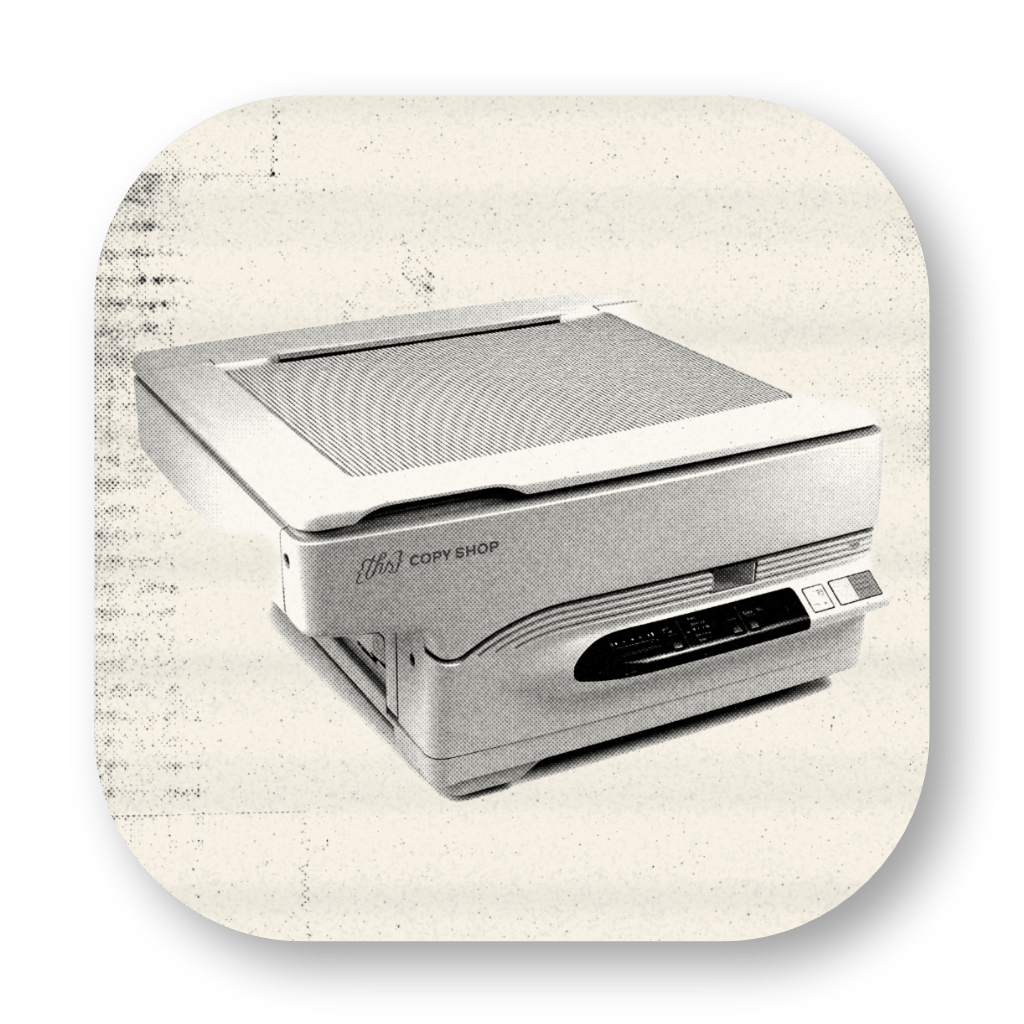
Not a real one. No paper jams to fix, no toner to spill on your shirt – just the experience, faithfully simulated. Drop in an image, press COPY, and watch it come back through a machine that has seen better days. Toner grain, roller streaks, a wobbling drum, scratched glass, halftone screens, dot gain, color channels that never quite line up, and a cartridge that actually runs out.
Not a filter
Simulated and not overlaid.
Grunge presets just dump dirt on top of a picture. {ths} Copy Shop works differently. It rebuilds the picture the way a real copier does: scan, screen, develop, print. That order matters — it's what makes the result look real.
Blur comes first, from the scanner lamp. Toner grain comes later, from the drum. Dot gain only shows up where ink already is. And nothing in the process brightens the page — because real machines don't do that either.
One-time purchase · macOS 14 Sonoma or later · Apple silicon
Features
What the machine can do to your image
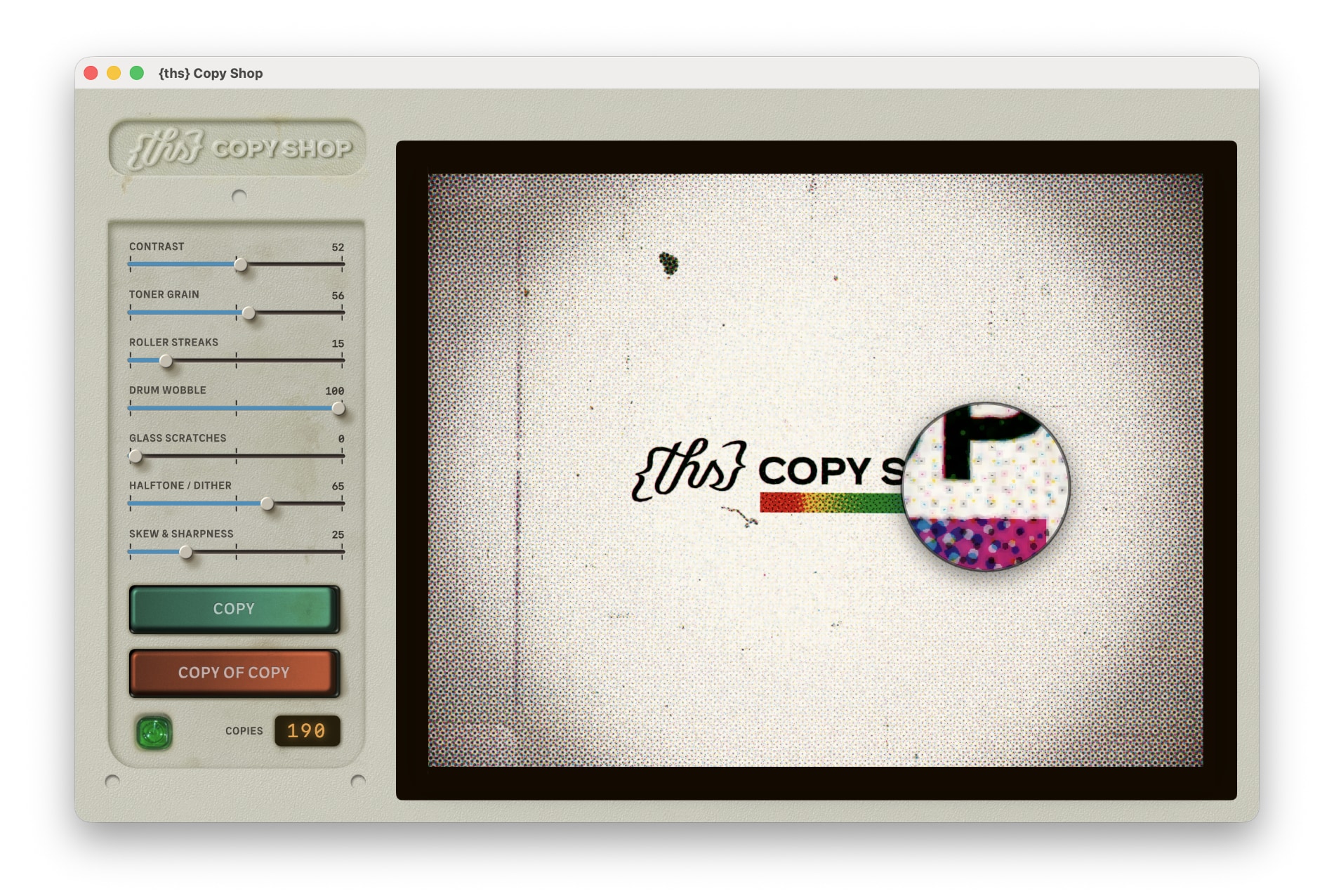
Seven dials on the panel, the rest in the menu bar.
Two machines in one
Black & white or full colour
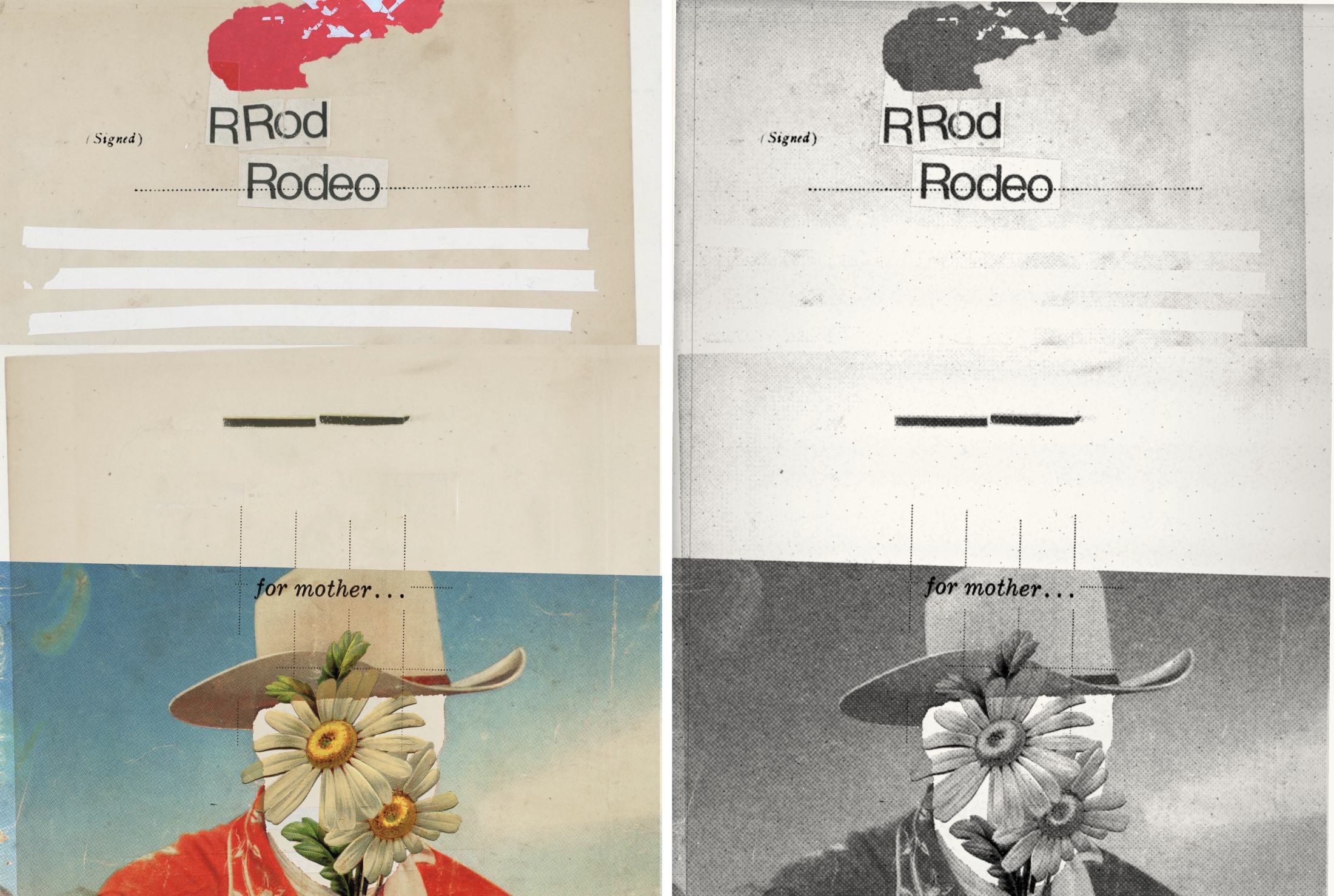
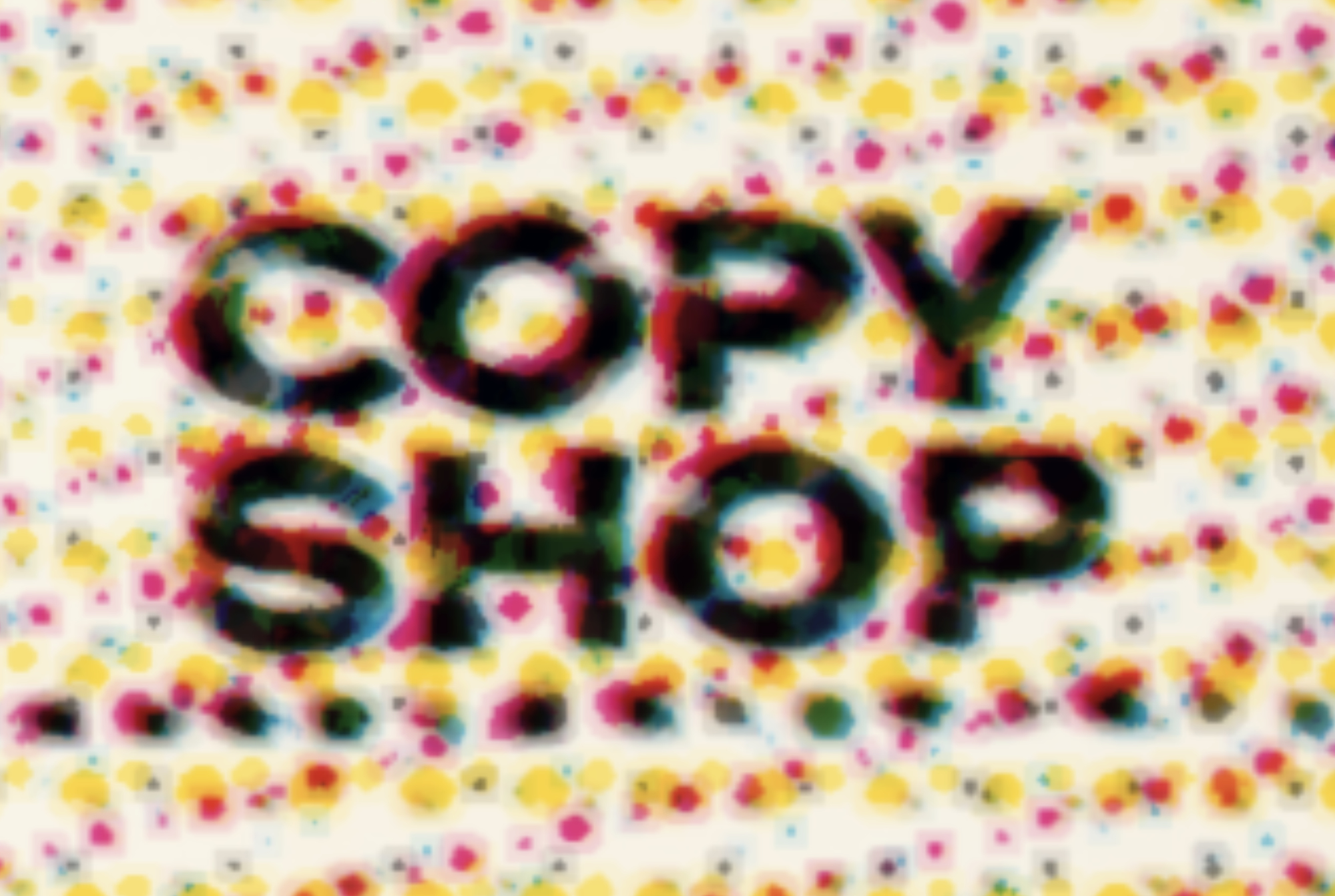
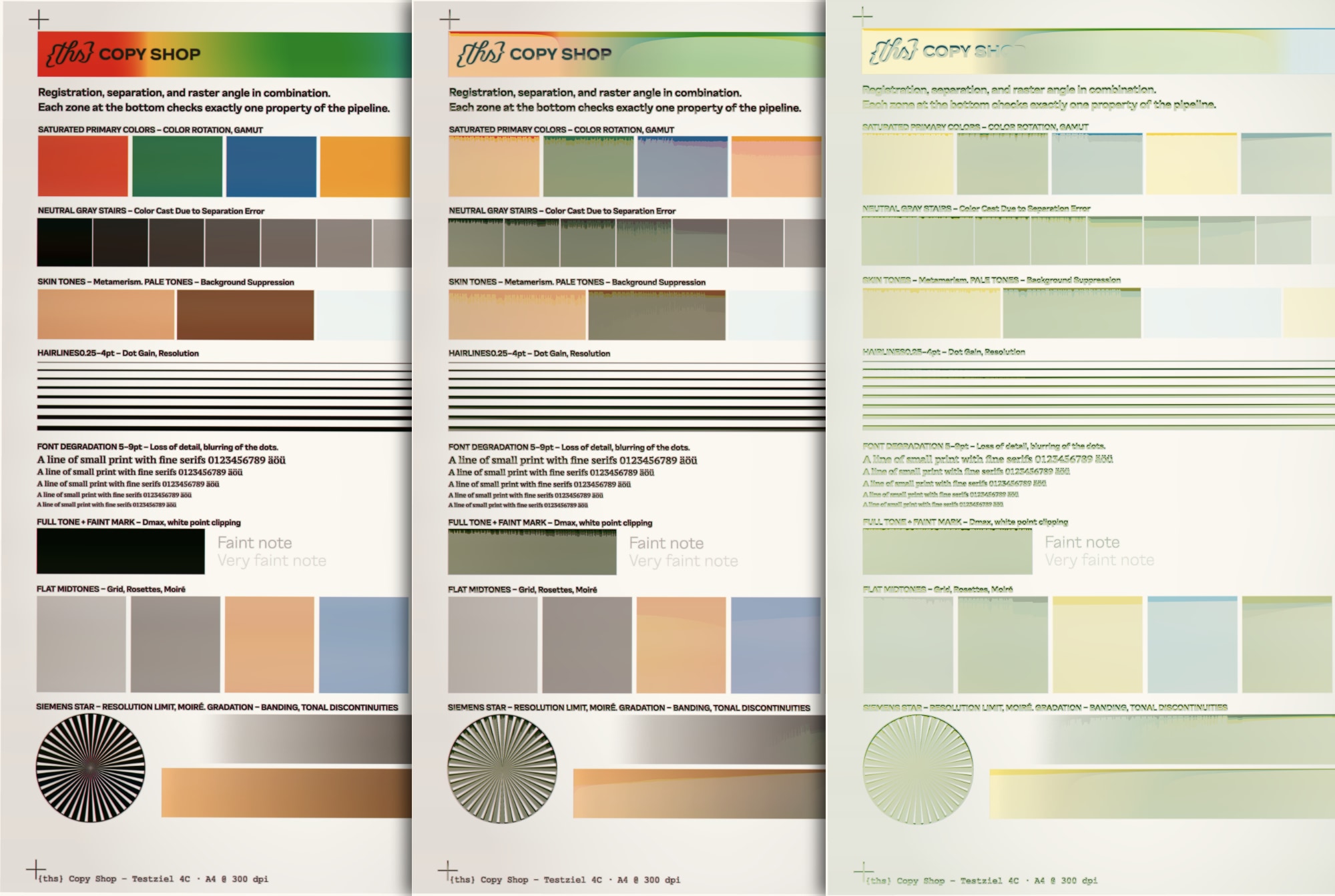
Two genuinely separate paths, not one path with the saturation pulled out. The colour side separates to CMYK with grey component replacement and prints four screens at four angles — rosettes and moiré appear on their own, as interference, exactly as in print.
Copy of copy
Generation loss you can stack
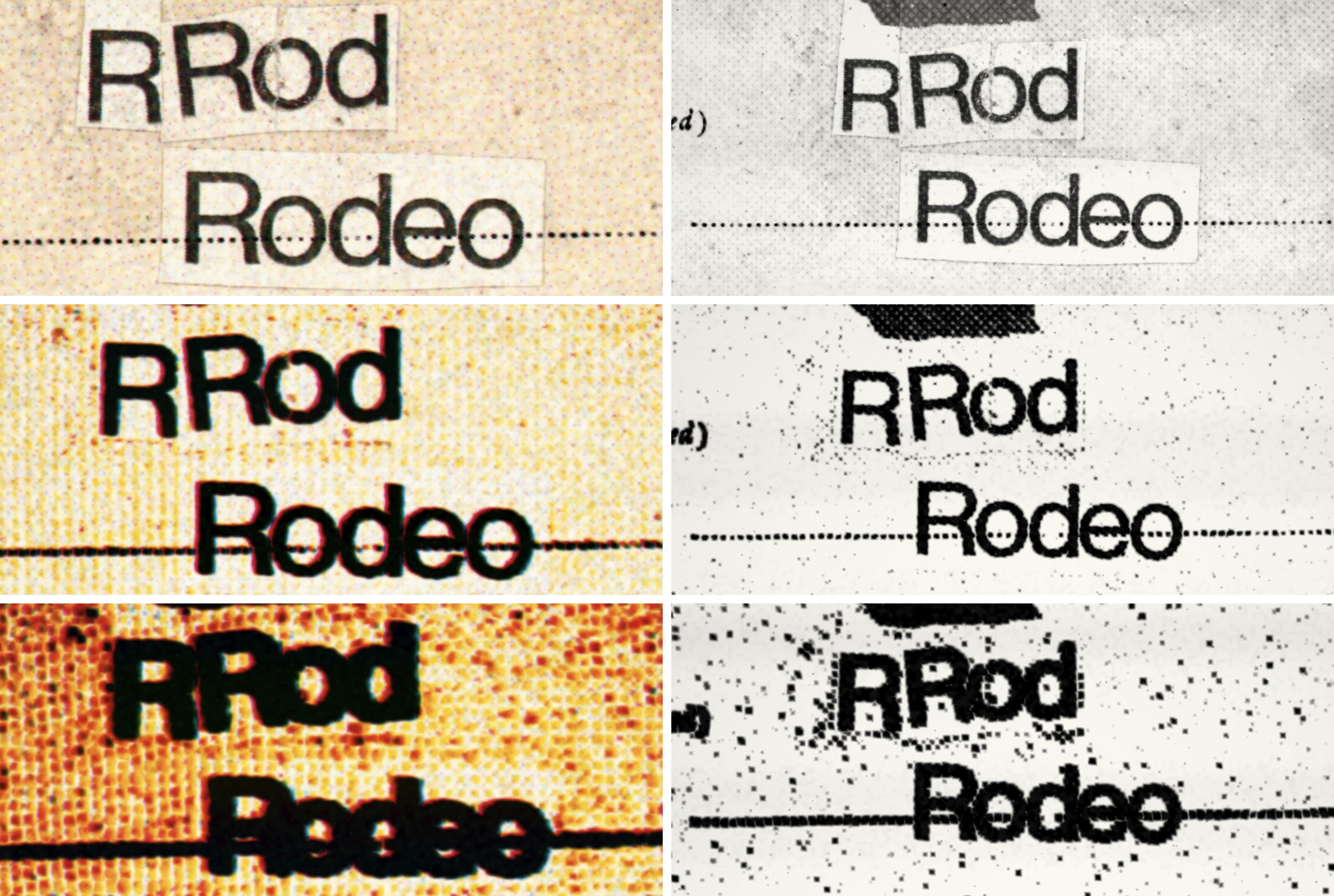
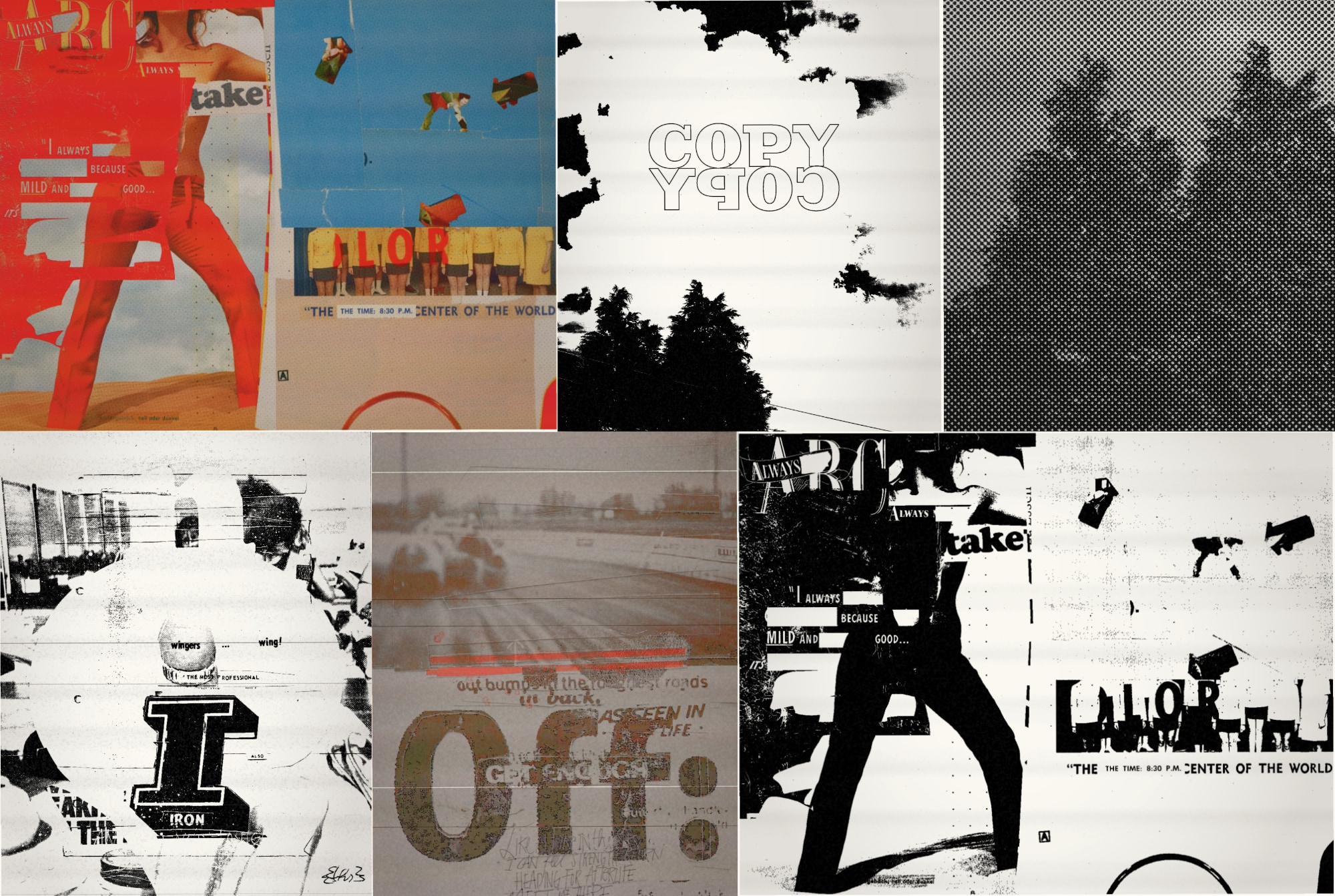
Press COPY OF COPY and the output becomes the new original. Each pass thickens the ink, chews the edges and darkens the grain — the fifteenth generation looks like the fifteenth generation, not like the first with more noise.
Toner
A cartridge that runs dry
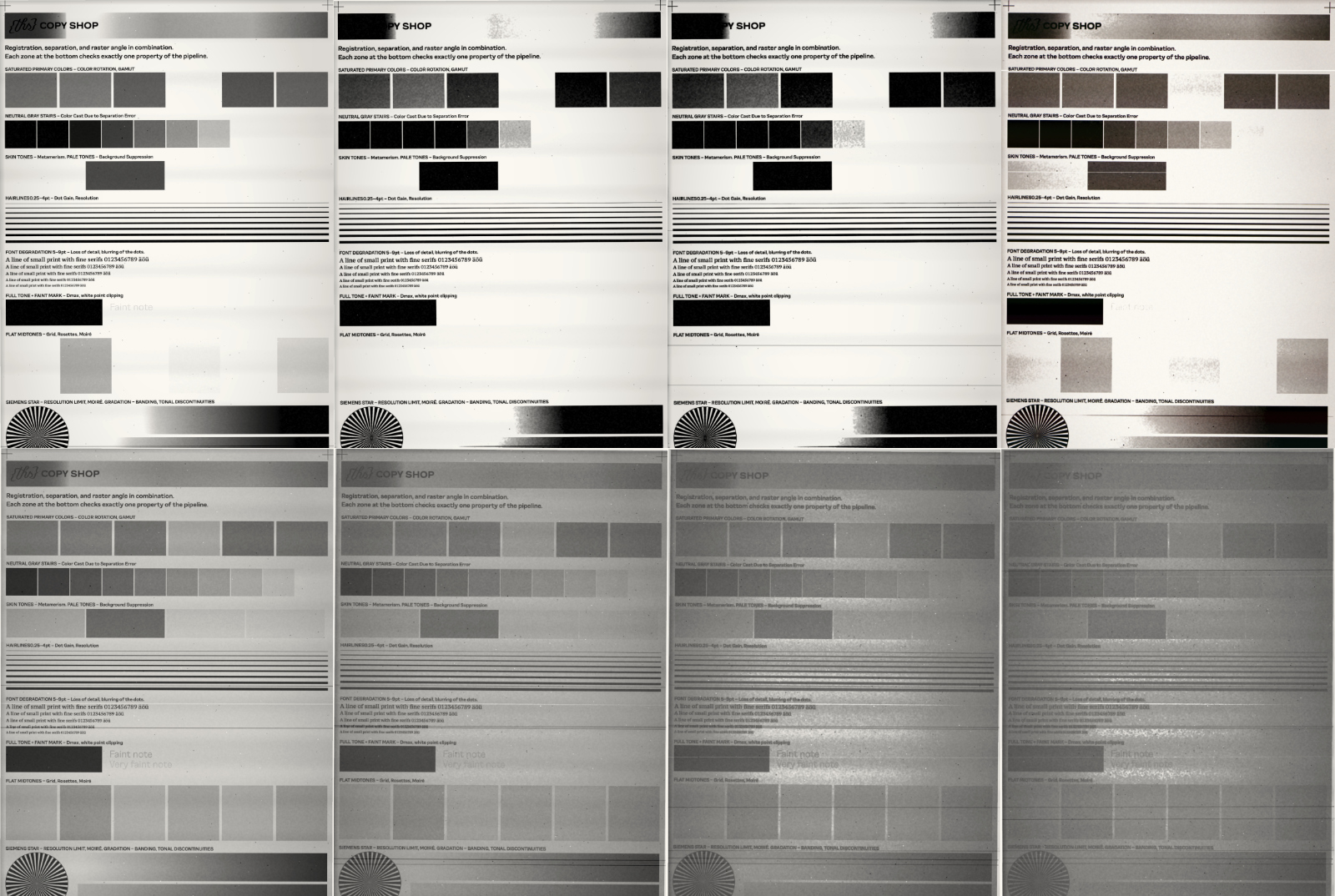
Charge is modelled per column, so solid areas starve while text keeps printing, and the ghost of a dark block appears below it. Follow the page counter, or set a fixed level from 100 % down to 10 %.
Wear & tear
Every machine is its own machine
Scratches on the glass, flecks, feed lines and print-unit stripes come from a machine seed. New Machine gives you a different worn copier; the same machine marks every copy the same way, copy after copy.
The dials
Seven controls, all physical
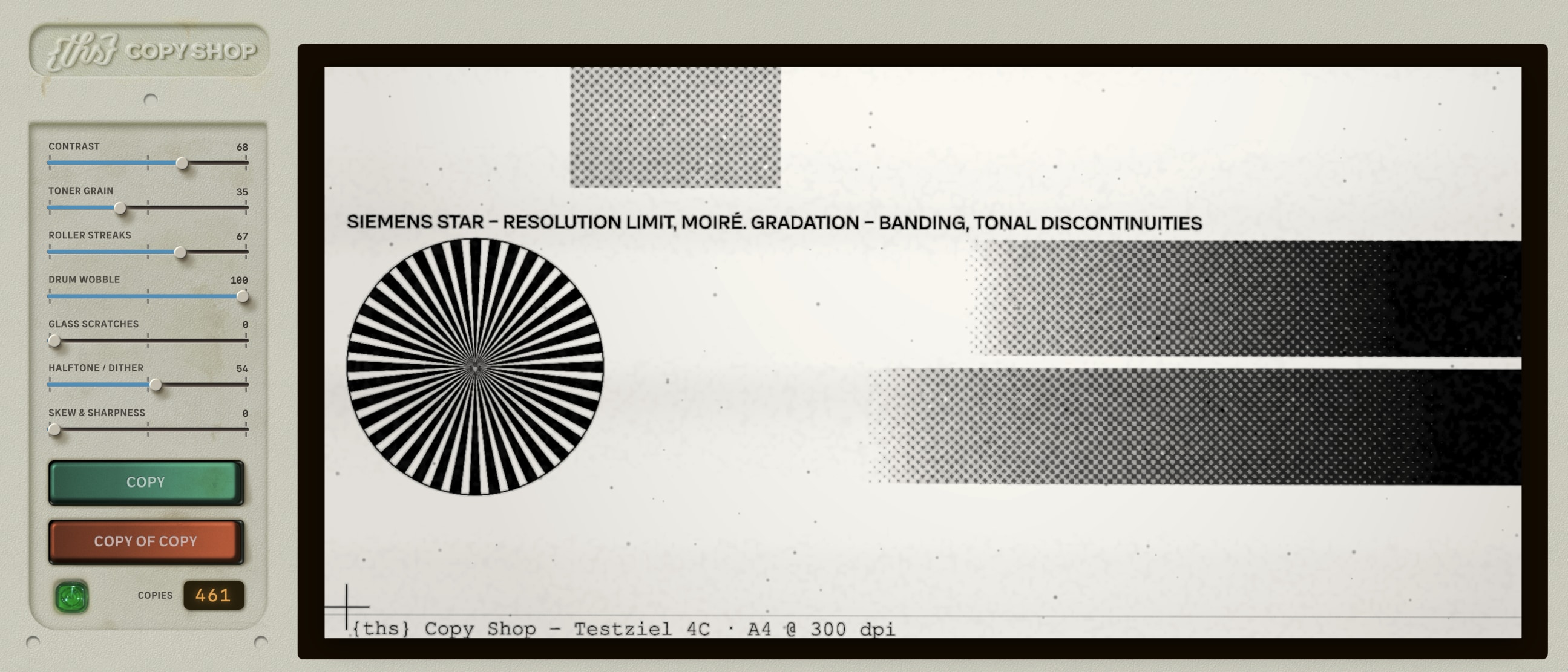
Contrast, Toner Grain, Roller Streaks, Drum Wobble, Glass Scratches, Halftone/Dither, Skew & Sharpness. Plus vignette and lid shadow as switches — the dark edge you get when the lid will not close over a thick book.
Loupe
Magnifier over the output tray
Hold the loupe over the finished sheet and read the actual pixels: the screen dots, the grain, the channels drifting apart. It samples the full-resolution copy, never the fitted preview.
Gallery
Same picture, different machine
How it works
The order is the whole trick
Every copy runs through the same chain, in the same sequence a real machine imposes.
-
Scan — The lamp sweeps the glass. Optics soften the image, the exposure control fights back, and the contrast curve lands where you set it.
-
Screen — Continuous tone is turned into dots — one screen in black & white, four angled screens in colour.
-
Develop — Toner grain, speckle, roller streaks, drum wobble, and dot gain blooming out from wherever ink already sits.
-
Print — The sheet travels: it arrives a fraction rotated, colour channels slip against each other down the page, and the cartridge gives what it still has.
-
Out — Edges fall off into the vignette, the lid shadow darkens the border, and the paper takes on its own tone — on the sheet you see, never inside the maths.
Requirements
What you need
| Operating system | macOS 14 Sonoma or later |
|---|---|
| Processor | Apple silicon and Intel Macs (M1 recommended) |
| Memory | 8 GB RAM recommended for large scans |
| Disk space | Under 50 MB |
| Image formats | Opens the usual macOS image formats (JPEG, PNG, TIFF, HEIC…) and pastes from the clipboard |
| Export | JPEG at full quality, or the image straight back to the clipboard |
| Internet | Not required — everything runs on your Mac, no account, no upload |
| Licence | One-time purchase |
Questions
Before you buy
No. There is no overlay texture and no stack of blend modes. The image is taken apart
into light values and put back together the way a copier does it — scan, screen,
develop, print. That is why the result changes character when you copy a copy, instead
of simply getting noisier.
Yes. Photographs show the halftone screen and dot gain most clearly; text and line art
show the roller streaks, skew and generation loss. The colour path is the more
interesting one for photographs, the black & white path for documents.
The machine’s wear is fixed until you ask for a new machine, and the dial settings
travel through presets and copy/paste of settings. What deliberately does not repeat is
the page counter driving the toner level — a cartridge is never at the same place twice.
Full scans. On a M1 Mac, a 4.4-megapixel A4 page copies in roughly a quarter of a second in black
& white; larger images scale in proportion, and every effect scales with the
resolution so a big scan does not simply get finer dirt.
{ths} Copy Shop is made independently, without an Apple Developer Program
membership, so it isn’t notarized by Apple. The costs I incur with Apple to be a developer outweigh the revenue I make from this app. And being a developer just so you can install the app without any hassle? Come on, no way. The hassle is part of the fun, isn't it? So, macOS shows an "unidentified developer" warning the first time you open any app like this — it’s a one-time step, not a sign anything is wrong. See INSTALLATION above for the exact steps.
No. There is no account, no telemetry and no upload. Your images stay on your Mac.
One extra click the first time
Installation
{ths} Copy Shop is built by a single developer without an Apple Developer Program membership, so the app isn't notarized by Apple. macOS Gatekeeper will flag it as being from an unidentified developer the first time you open it — that’s expected, and it only happens once.
-
Move the app to Applications, then double-click it as usual. If macOS shows "{ths} Copy Shop can't be opened because it is from an unidentified developer," or “Apple could not verify…” click Done and continue below — don't move it to the Trash.
-
Open System Settings → Privacy & Security, scroll down to the Security section. You'll see a line naming {ths} Copy Shop with an Open Anyway button — click it, then confirm once more in the dialog that appears.
-
Double-click the app icon and at the following popup click in „Open Anyway“. Enjoy!
If none of that shows an Open Anyway option, the quarantine flag can be removed directly in Terminal:
xattr -cr /Applications/ths\ CopyShop.app
This only clears macOS’s "downloaded from the internet" flag on the app you already
have — it doesn’t touch anything else on your Mac, and you only need it once per
download. If you download an update later, the same first-launch step applies to
the new copy.
Put a broken copier on your desk.
One purchase, no subscription, no account. Runs entirely on your Mac.
Version 1 — Requires Apple Silicon / Intel / macOS 14+
macOS 14+
Apple silicon
Apple Intel
No account
Offline